
| These are instructions on how to install Plex Media Center on your Apple TV. Before beginning you must jailbreak your device. Step One Launch Terminal from your Applications:Utilities folder.  Step Two SSH into the Apple TV by entering the following command into the Terminal window. Replace "10.0.1.20" with the IP address of your Apple TV. ssh root@10.0.1.20 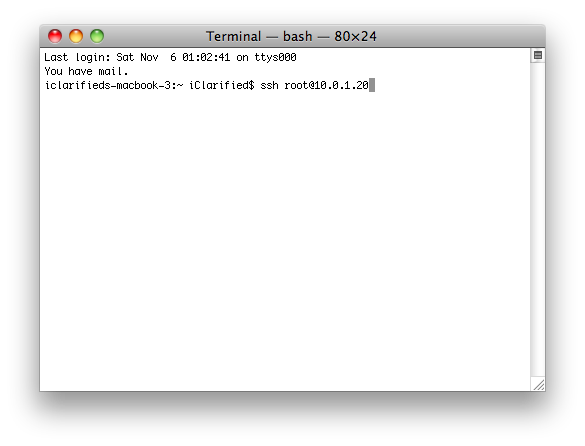 If you haven't connected to this device before it will ask you if you're sure you want to continue connecting. Type in yes and hit the enter key. 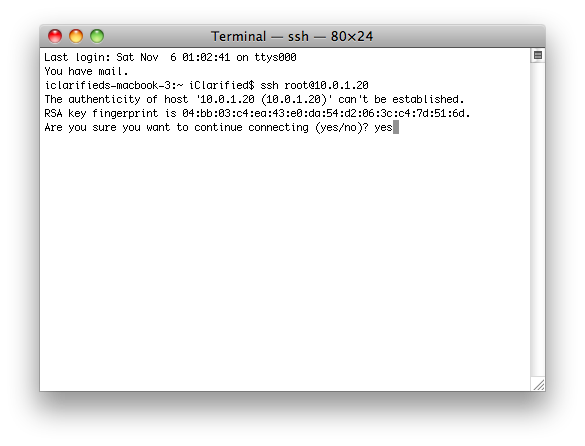 Enter alpine as your password if you haven't already changed it. 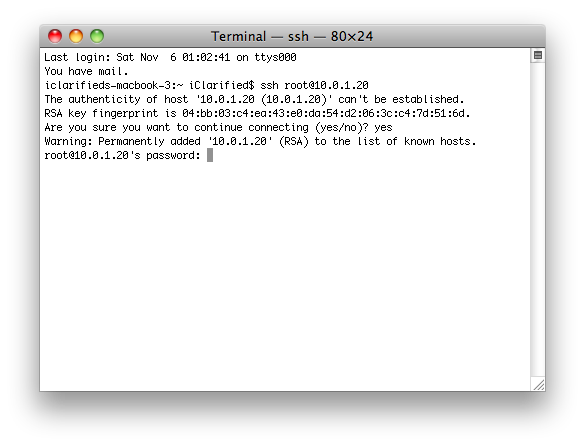 Step Three Add the new Cydia sources by inputing the following commands into the Terminal window. echo "deb http://apt.awkwardtv.org ./" > /etc/apt/sources.list.d/awkwardtv.list echo "deb http://www.ambertation.de ./downloads/PLEX/" > /etc/apt/sources.list.d/plex.list 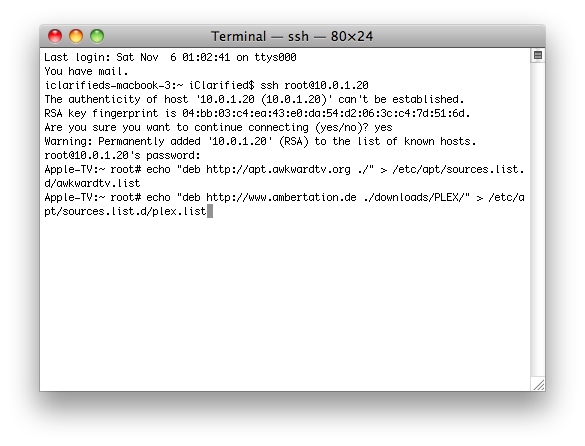 Step Four Now update your Cydia database by entering the following command. apt-get update 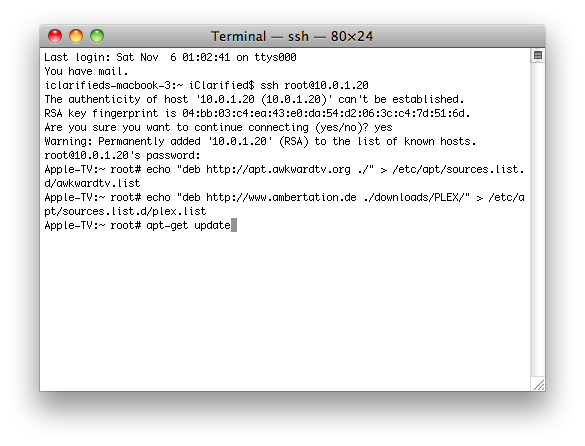 Step Five Install the plugins (and its dependencies like beigelist by DHowett) by entering the following command. apt-get install plex-client-plugin 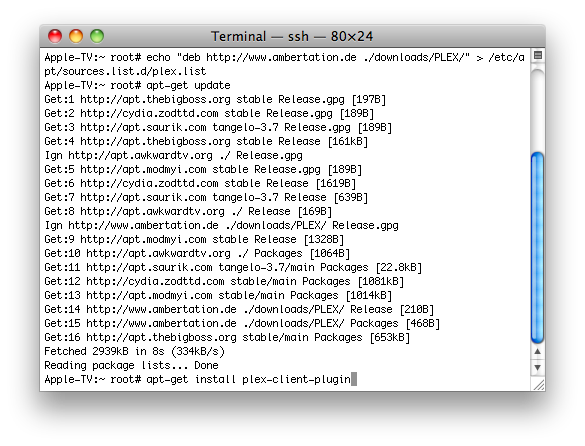 If you are warned that additional disk space will be used, input Y and press enter 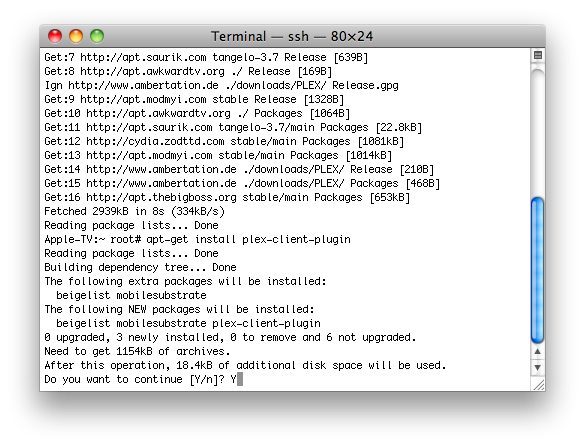 If asked to Install these packages without verification, input Y and press enter. 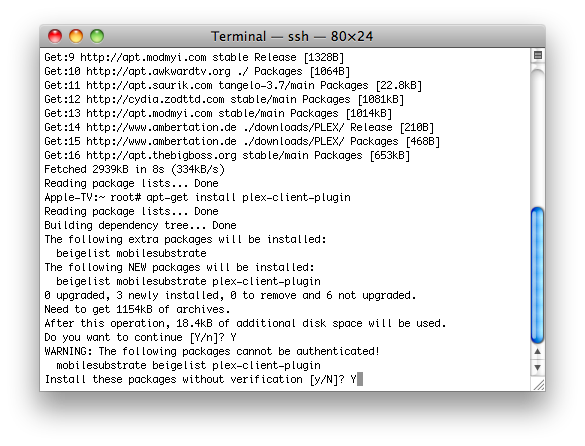 Step Six Restart the GUI by entering the following command into the Terminal window. killall Lowtide 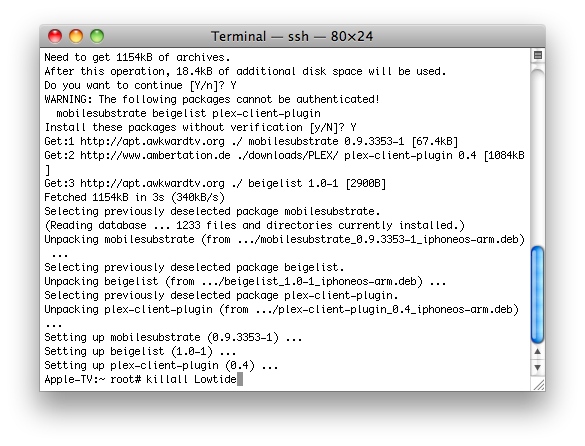 Step Seven Once the GUI restarts you should see PLEX in the menu bar. 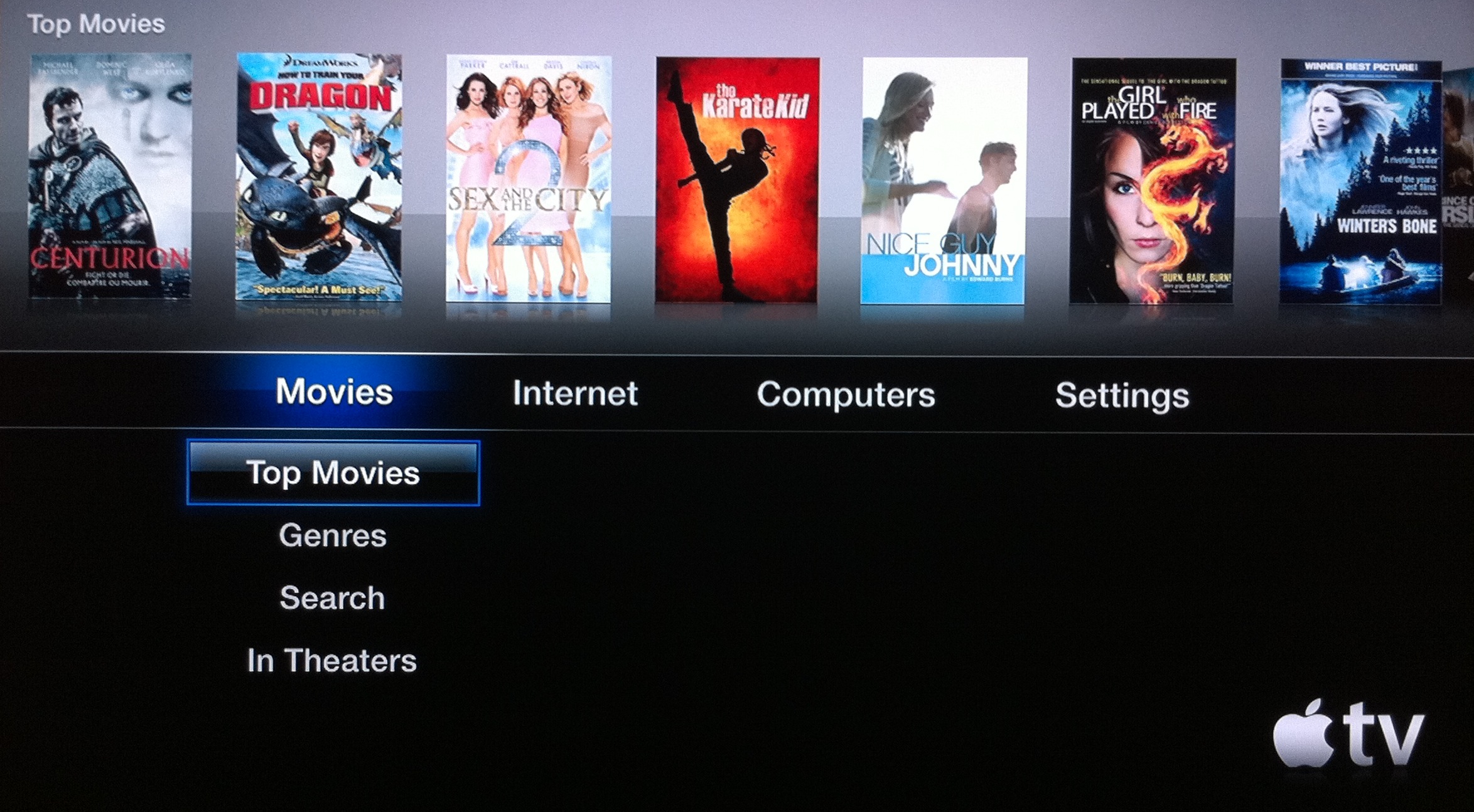 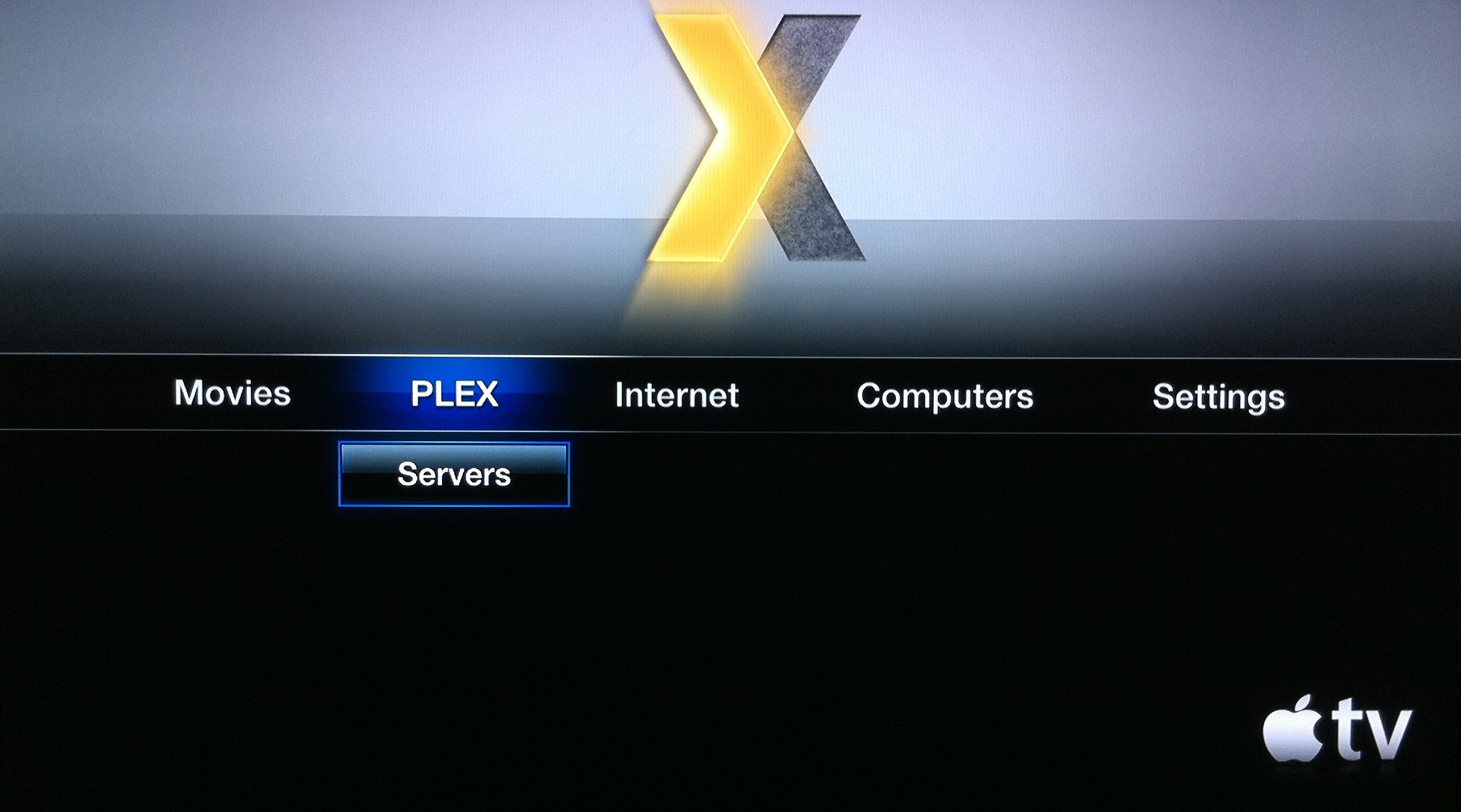 You can learn more about these instructions from their source. If this tutorial needs to be updated please let us know here |
|
|
|---|
Saturday, November 6, 2010
AppleTV | How to Install Plex Media Center on Your Apple TV

Subscribe to:
Post Comments (Atom)

No comments:
Post a Comment